Advanced Settings for Workstation Use
The optional Workstation settings described here can improve the efficiency of collection analysis.
If your data contains a risk score, we suggest configuring event notifications for a more explicit means of identifying high-risk events.
You can create statuses and tags for notifications and collections to color-code, label, and filter by in several widgets.
Managing Status and Tags
Required Permissions
- Workstation: Tags: View & Edit.
Statuses and tags allow users to define custom workflows and color coding for event notifications and collections. They also enable filtering to be performed on large sets of notifications and collections.
There are three types:
- Collection Statuses are assigned only to collections. A collection can have only one status at a time.
- System Tags are system-wide and versatile, assignable to both collections and notifications.
- Notification Tags are assigned only to event notifications, one tag per notification.
To access the screen to manage status and tags:
- From the top-right side of the Workstation homepage, click the Settings (cogwheel) icon.
- From the left drawer, select the Tags & Statuses tab.
- Select the tab for the type of status or tag you wish to manage.
- Proceed to perform any of the following functions:
Creating Statuses and Tags
New statuses and tags can be created as necessary.
To create a new status or tag:
- Click the blue + Create New button to create a new status/tag.
- Enter the desired name.
- Select a desired color using the color picker or enter a valid hex color code.
- Click Save.
Editing Statuses and Tags
Statuses and tags can be edited to correct errors made during their creation, or to change the tags as needed.
To edit a status or tag:
- Select the Edit button that appears on a table row. An edit panel appears.
- Enter a new name for the tag if necessary.
- Select a new color for the tag if necessary.
- Click Submit to save your changes.
Deleting Statuses and Tags
If a tag is no longer needed, or was created by mistake, it can be removed.
To delete a status or tag:
- Identify the status or tag you wish to delete.
- Click the More menu (⋮) at the end of the table row.
- Click Delete.
Upon deleting a status or tag, the system prompts the user to select another status/tag to reassign to all collections and notifications affected by the deletion.
Sorting Statuses and Tags
Statuses and tags can be reordered, which effects the display order in Workstation and assigns each status/tag a priority score.
To sort tags:
- Hover over a row to reveal the drag icon on its left.
- Drag and drop each row higher or lower to determine its order. Changes are saved automatically.
The sort order of tags is optional, but can be utilized in several widgets:
- Notifications widget: Can sort event notifications based on notification tag order.
- Notifications Explorer widget: Can sort event notifications based on notification tag order.
- Collections widget: Sorts the collection by the collection tag order.
Updating Short ID Codes
Required Permissions
- Workstation: Misc Settings: View & Edit.
A short ID code is a prefix assigned to all newly created collections that customizes the text at the beginning of a collection's ID. Short IDs can be assigned at any point by users with the Misc Setting permission. Short IDs increment sequentially as new collections are created, and do not retroactively overwrite other short IDs.
To assign or update a short ID code:
- From the top-right side of the Workstation homepage, click the Settings (cogwheel) icon.
- From the left drawer, select the Misc Settings tab.
- Click the pencil icon. A modal opens.
- Enter a new Short ID Prefix. A preview of the short ID appears at the right side.
- Click Save to save the new short ID, or Cancel to discard all changes.
When a short ID is created, collections that use it are updated sequentially. When the ID is changed, a new sequence is started. If the ID is ever changed back to a preexisting ID, the collection ID count starts sequentially from where it left off.
For example, suppose the code ID COLLECT stopped being in use with COLLECT-11. At that point, COLLECT was changed to MYCOLLECT. MYCOLLECT was used until MYCOLLECT-4, when COLLECT was reintroduced. In this case, the next collection to use COLLECT would be COLLECT-12.
Working With Event Notifications
Required Permissions
- Workstation: Notification Settings: Edit.
Event notifications draw attention to particular system actions, events, or other occurrences that users should know about. Each event notification is tied to a specific event_type produced by a pattern in Authoring.
Event notifications can:
- Utilize system and notification tags for a custom status and labelling system.
- Have a priority.
- Have an assigned user.
- Issue an alert to the assigned user in Workstation when the event notification is updated.
- Be archived or dismissed.
Event notifications also let users view and analyze the underlying events that trigger them.
Creating Event Notification Settings
Event notifications are triggered depending on the configurations set when a notification setting is created. Refer to the event notifications document for an understanding of how these settings impact workflows.
To create a notifications setting:
- From the top-right side of the Workstation homepage, click the Settings (cogwheel) icon.
- From the left drawer, select Notifications.
- Click + New Event Notification. A modal opens containing the settings for this event notification.
- Enter the Event Type to associate with the event notification, and select it from the list of available event types that match your entry.
- Select a Title from the list of available data fields from the event type. (Note: Titles can be edited later if needed.)
- Set the event notification's Visibility as either PRIVATE or PUBLIC.
- Optionally, in the Assign To field, choose whether there is a default user to receive any event notifications produced by this setting:
- No One: No user receives event notifications triggered by this setting by default. You can assign unique notifications to users from the event notifications widget.
- A specific user: he assigned user(s) receive a system notification.
- Establish a risk threshold using the Risk Range slider. Event notifications are issued when the risk score falls within the range defined. (Note: A more specific Risk Range helps avoid spam notifications and cut noise. Adjust the slider’s upper and lower values within the range of 0 to 100. Only notifications that meet those defined risk thresholds are triggered.)
- Assign a Notification Tag to be able to generate a notification setting, as well as filter for and color code specific event notifications.
- Optionally, select the Process notifications for events already ingested checkbox if you wish for event notifications to be created for the events that have already been ingested into Workstation. If unchecked, this notification setting only starts processing notifications for new events or updates to events from the time the notification setting is created. This option is unchecked by default.
- Click Create to create the event notification, or Cancel to discard the changes.
Any unique event notification can be reassigned regardless of whether its notification setting is public or private.
Setting Notification Visibility
A notification's visibility can be set to either public or private.
If the notification has a Visibility setting of public:
- All users can see unique event notifications that a public setting triggers.
- All users with write permissions for Workstation: Notification Settings can edit the setting.
- All users with read permissions for Workstation: Notification Settings can view the setting.
If a notification has a Visibility setting of private:
- Only the user who created the Notification Setting can view and edit it.
- Other users can see event notifications produced by this setting if they are manually assigned to it.
Managing Event Notifications
The More menu (⋮) on the right side of any event notification opens a number of settings, including:
- Update a notification.
- Delete a notification.
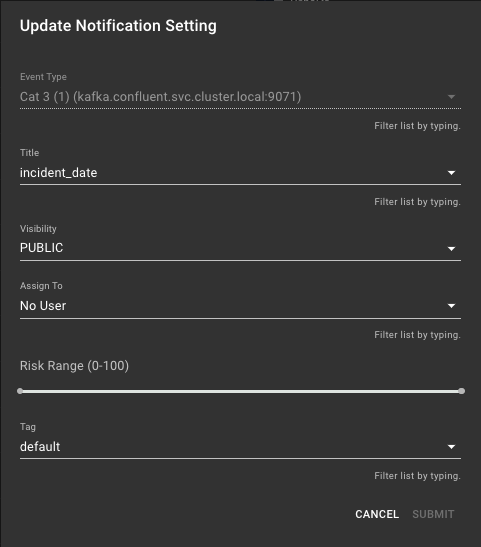
Updating Event Notifications
Event notifications can be updated when changes are needed to any attributes.
To update an event notification:
- From the event notification settings screen, click the notification setting to edit any of the following fields:
- Title
- Visibility
- Assigned to
- Tag
- Click Update to save the adjusted settings, or Cancel to discard the changes.
System-Triggered Deletion of Single Event Notifications
It is possible for the system to automatically delete a single event notification under two scenarios:
- The event that triggered a notification has changed in
risk scoreso that it no longer satisfies the notification setting risk threshold. - The event tied to the event notification was designated to be deleted from an Authoring pattern.
Deleting Notifications Triggered from Notification Settings
Individual event notifications cannot be deleted by the user, although they can be archived or dismissed so that they do not appear on the notification-based widgets.
When a notification setting is deleted, any event notifications triggered by the setting are also deleted.
Notification settings can be deleted from the event notification settings page:
- Locate the event notification setting to be deleted.
- Click the More menu (⋮), then click Delete.
- Click Delete to confirm deletion, or click Cancel to cancel deletion.
When users delete a notification setting, all associated event notifications are also deleted, but the underlying events are still viewable in Workstation via the Events Stream.